
On the Night
During the Show
Change what's on screen in one tap.
Push a slide
Tap a slide chip on a screen's card. That screen shows only that slide until you change it, and the badge turns
Override.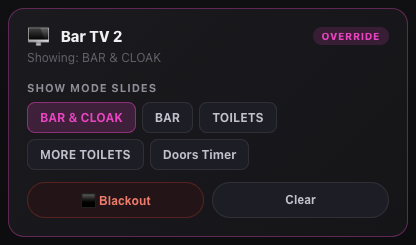
Bar TV 2 showing the BAR & CLOAK slide - the badge turns to Override. Blackout one screen
Tap
⬛ Blackouton its card. The screen goes black within about 2 seconds.Blackout everything
Tap
⬛ Blackout Allat the top of the page. While the room is dark it glows red and reads◼ BLACKOUT ACTIVE — Tap to Clear.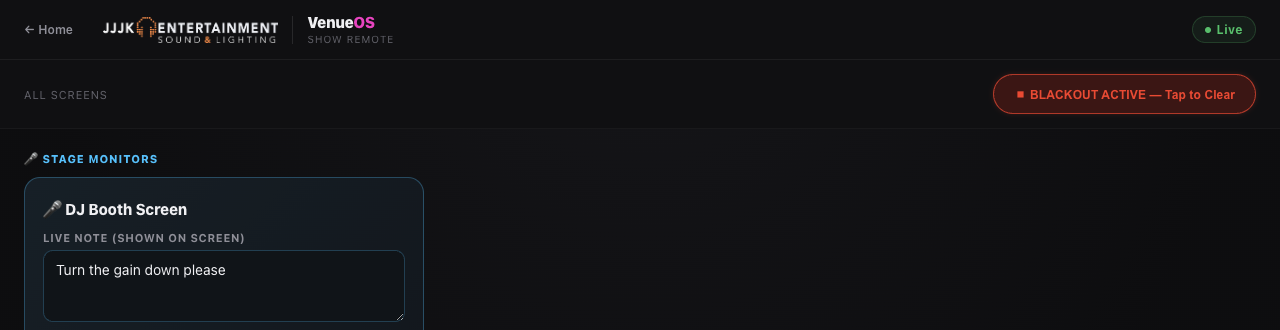
While everything is blacked out, the master button glows red. Bring it back
Tap the glowing master button, or
Clearon a single blacked-out screen. Whatever slide was up before the blackout comes straight back.Back to normal
Tap
Clearon a screen that's showing a slide. It drops the override and returns to its normal playlist and schedule.
Still stuck?Send us a ticket and the JJJK team will get back to you.
Submit a ticket