
Lunch, dinner and other menus
Group your sections into separate menus, like Lunch and Dinner, and show the right one on each board.
Add a menu
On the Live Menu tab, click
+ Menuand name it, e.g.Lunch. The sections you already have move into this first menu, so nothing goes missing. Add another, e.g.Dinner.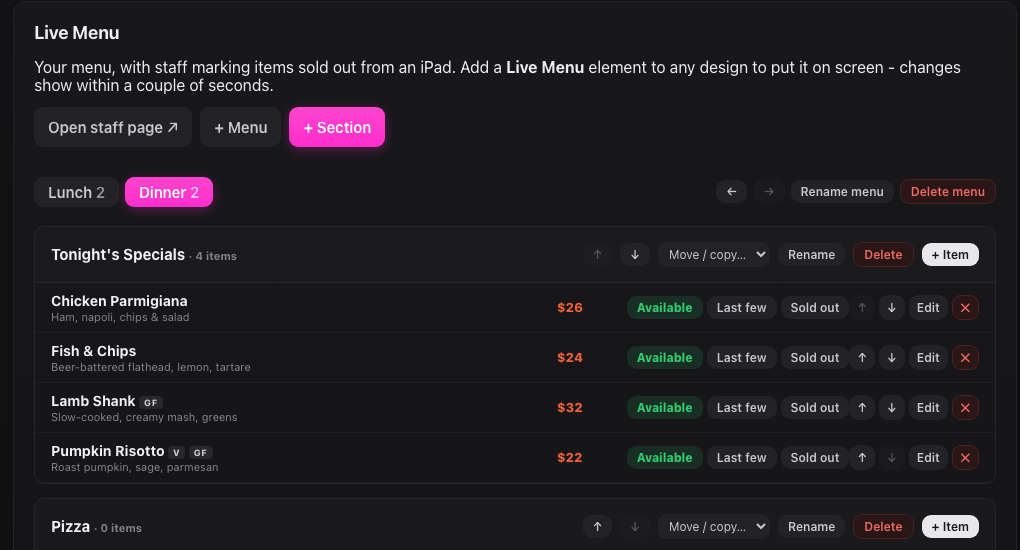
Menu tabs across the top. Click a tab to see and edit that menu's sections. Add sections to each menu
Click a menu's tab, then
+ Section. The new section goes into the menu that's open, e.g. Pasta and Pizza under Dinner.Move or copy a section
Each section has a
Move / copymenu. Move to puts it in another menu. Copy to makes a separate copy with all its dishes, handy when Lunch and Dinner share most of the pasta. A copy is separate: a sold-out on one doesn't carry to the other.Put a whole menu on a screen
Select the Live Menu element in a design and set
Showto e.g.The whole Dinner menu. Sections you add to that menu later appear on the board by themselves. ChoosePick sectionsinstead to hand-pick sections from any menu.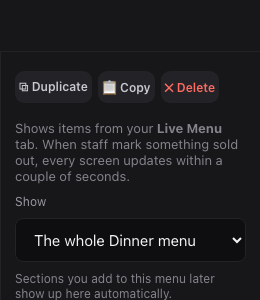
The element showing the whole Dinner menu. Switch boards at lunch and dinner
Make one design for each menu (Duplicate the first one and change
Show), then use the playlist's day and time scheduling so the Lunch design plays until, say, 5pm and the Dinner design after.Staff see menu tabs too
On the iPad, staff get the same tabs:
All menus,Lunch,Dinner. The iPad remembers which one they had open.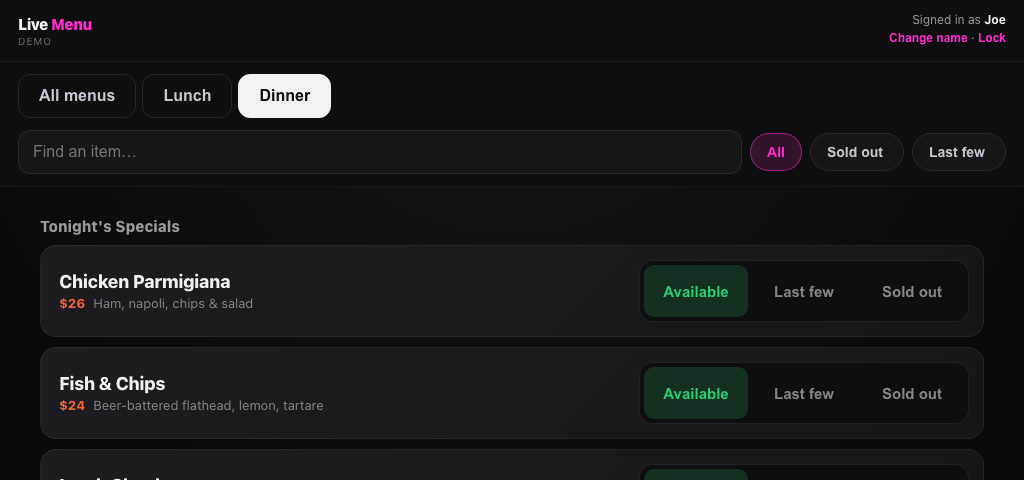
The staff page on the Dinner tab. Tidy up
Rename or reorder menus with the buttons at the right of the tabs. A menu can only be deleted once it's empty: move or delete its sections first. Delete the last menu and your sections go back to a single list.
+ Menu and everything works as before.