
Documents›Live Menu
Add-on
Live Menu
Menu boards your staff keep up to date from an iPad or phone. Mark a dish sold out and every screen shows it within seconds.
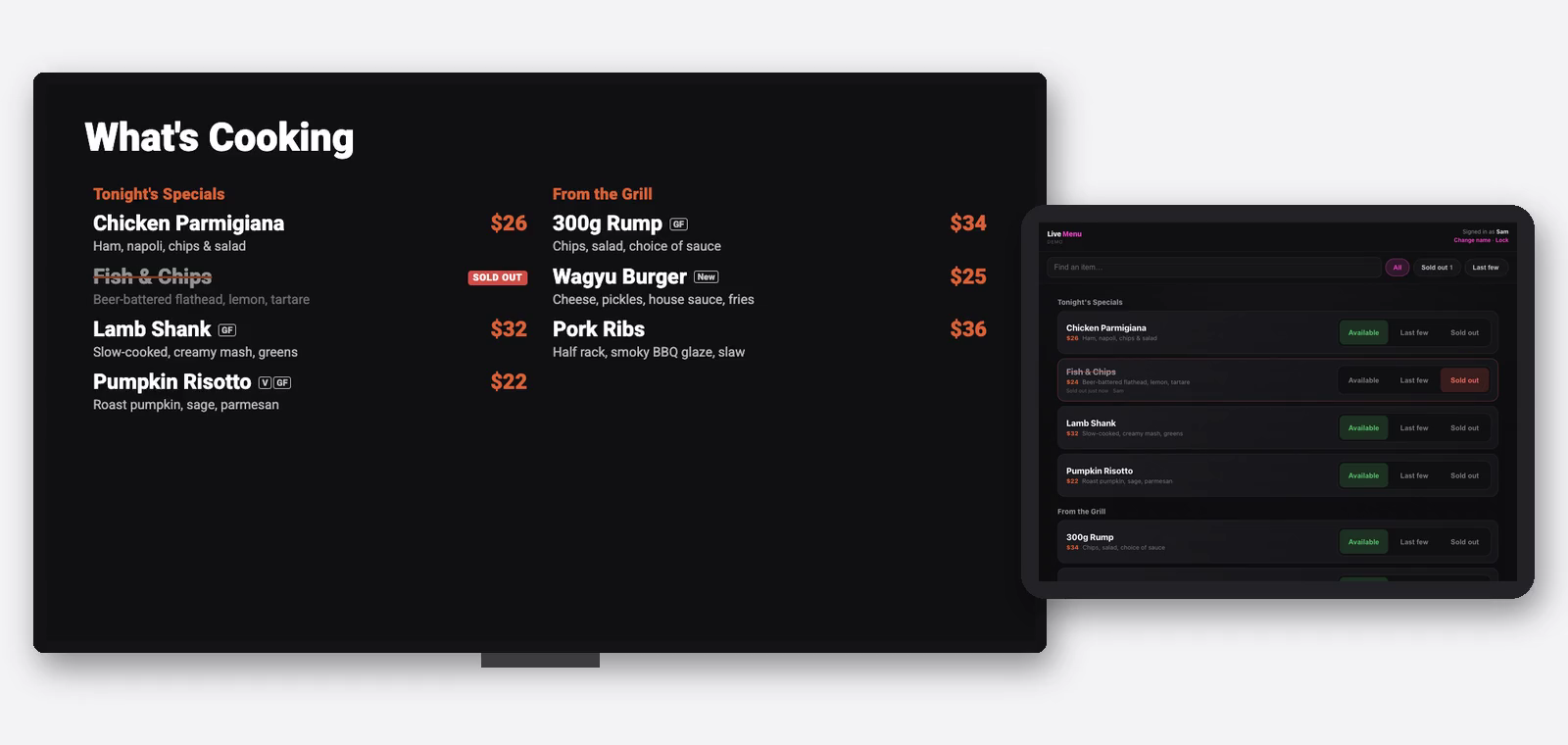
How Live Menu works
The whole idea in 30 seconds.
3 steps
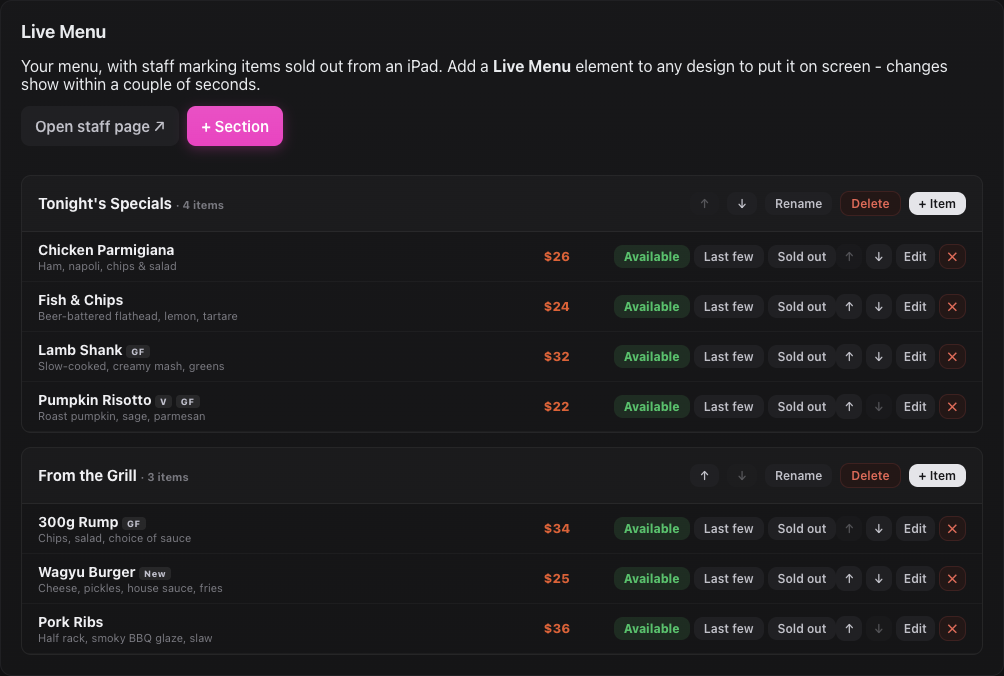
Build your menu
Add your sections and dishes once in the Signage dashboard.
4 steps
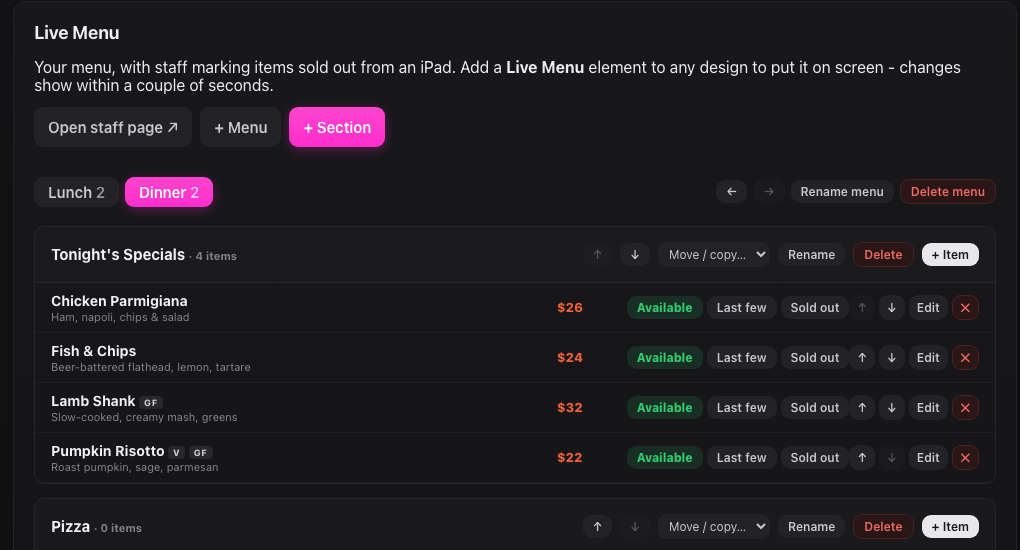
Lunch, dinner and other menus
Group your sections into separate menus, like Lunch and Dinner, and show the right one on each board.
7 steps
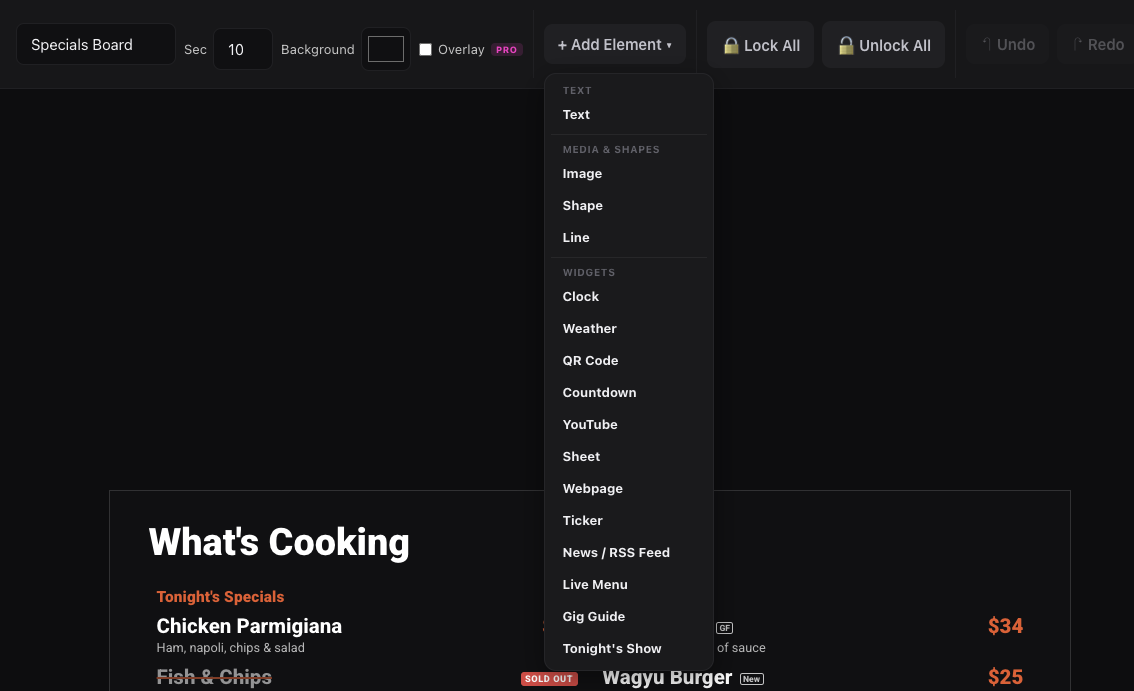
Put the menu on a screen
Add a Live Menu element to any design and style it to match your venue.
5 steps
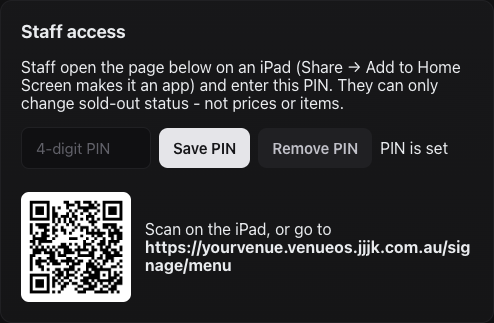
Set up the staff iPad or phone
Give staff a one-tap way to mark dishes sold out.
5 steps
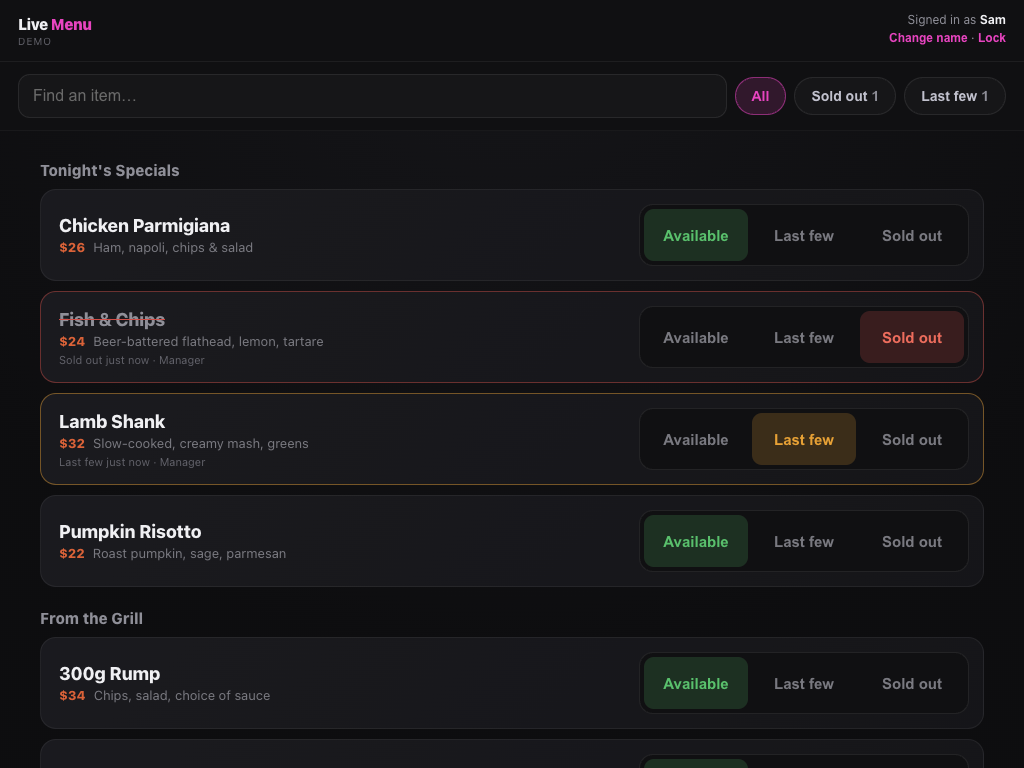
Mark dishes sold out during service
Keep the boards honest while the kitchen's running.
4 steps
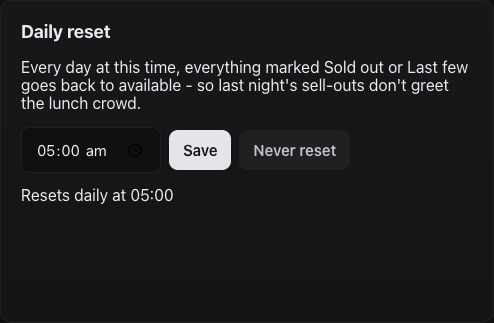
Daily reset and change log
Start every service with a clean board, and see who changed what.
4 steps
Good to know
- Live Menu is an add-on. If there's no Live Menu tab in Signage, ask JJJK to switch it on for your venue.
- Menu edits are instant. Adding or changing a dish shows on the boards straight away — you only Push when you change the design itself.
- One Refresh the first time. A screen that was running before Live Menu was added needs one Refresh from the Screens tab.
- Staff editing is up to you. By default staff only mark dishes sold out. Tick Allow staff to add and edit dishes if you want them fixing prices or adding specials too.
Where to find it
/signage/menuStaff page for the iPad (PIN)/signage/controlLive Menu tab: dishes, PIN, daily reset, change logStill stuck?Send us a ticket and the JJJK team will get back to you.
Submit a ticket